> For the complete documentation index, see [llms.txt](https://guide.assemblredu.com/llms.txt). Markdown versions of documentation pages are available by appending `.md` to page URLs; this page is available as [Markdown](https://guide.assemblredu.com/create-ar-3d-content/editor/4.-view-project.md).
# 4. Lihat Project
{% stepper %}
{% step %}
### Siapkan handphone atau tablet
Pilih dari beberapa cara berikut:
1. Melalui aplikasi Assemblr EDU, silahkan download Aplikasinya dilink berikut:
* [Google play](https://play.google.com/store/apps/details?id=com.assemblr.education\&hl=en)
* [App store](https://apps.apple.com/id/app/assemblr-edu-learn-in-3d-ar/id1505499586)
2. Melalui kamera handphone dan berlanjut akses melalui website browse dengan akses hal berikut:
1. [Project link shared](https://youtu.be/JIfwFY--prA?si=9E2f0odmKMAwrAru), atau
2. Marker yang kamu miliki
{% endstep %}
{% step %}
### Akses project 3D/AR, melalui link atau marker (QR Marker/Custom Marker) yang kamu punya atau dibagikan oleh kreator
{% endstep %}
{% step %}
### Tampilkan konten 3D/AR di perangkatmu
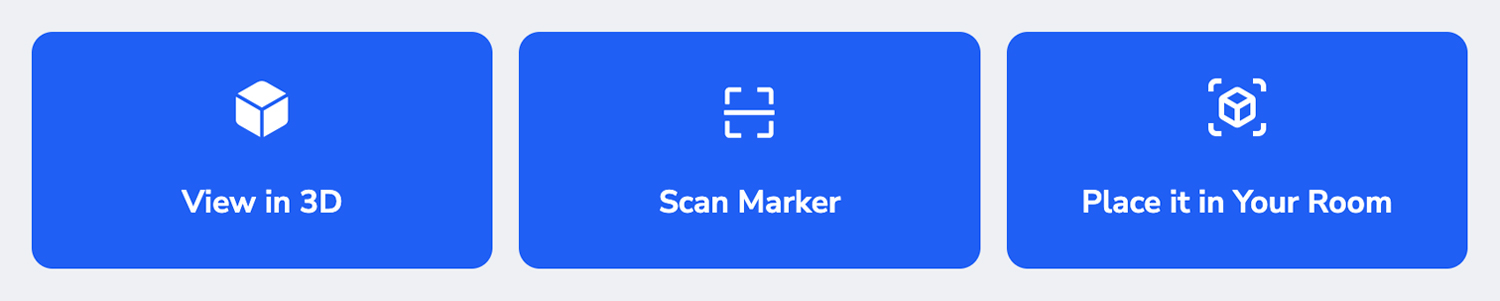
Seperti fitur Web AR, kamu dapat menampilkan proyek dalam tiga mode: **3D View**, **AR Marker**, atau **markerless** (menempatkan objek di sekitarmu).\
Untuk memulainya, buka proyek yang ingin dilihat. Setelah itu, kamu akan menemukan tiga tombol tampilan berikut:
* **3D View**
* **AR Mode** (menempatkan objek di lingkungan sekitarmu)
* **Marker-based View** (QR Marker atau Custom Marker)
Kamu dapat memilih mode tampilan yang paling sesuai dengan kebutuhanmu. Untuk langkah-langkah detailnya, silakan merujuk ke bagian **How to View Projects on Web Browser**.
{% endstep %}
{% endstepper %}