> For the complete documentation index, see [llms.txt](https://guide.assemblredu.com/llms.txt). Markdown versions of documentation pages are available by appending `.md` to page URLs; this page is available as [Markdown](https://guide.assemblredu.com/create-ar-3d-content/editor/2.-create-project/main-editor/editor-introduction.md).
# Pengenalan Editor
**Editor** di Assemblr EDU adalah sebuah tempat untukmu berkreasi dan membuat proyek AR.
Jika kamu sebelumnya pernah berkreasi di aplikasi *mobile* Assemblr, *tools-tools* yang ada sebetulnya sama. Namun, ukuran layarnya jadi lebih besar, sehingga akan lebih mudah bagimu untuk membuat proyek AR.
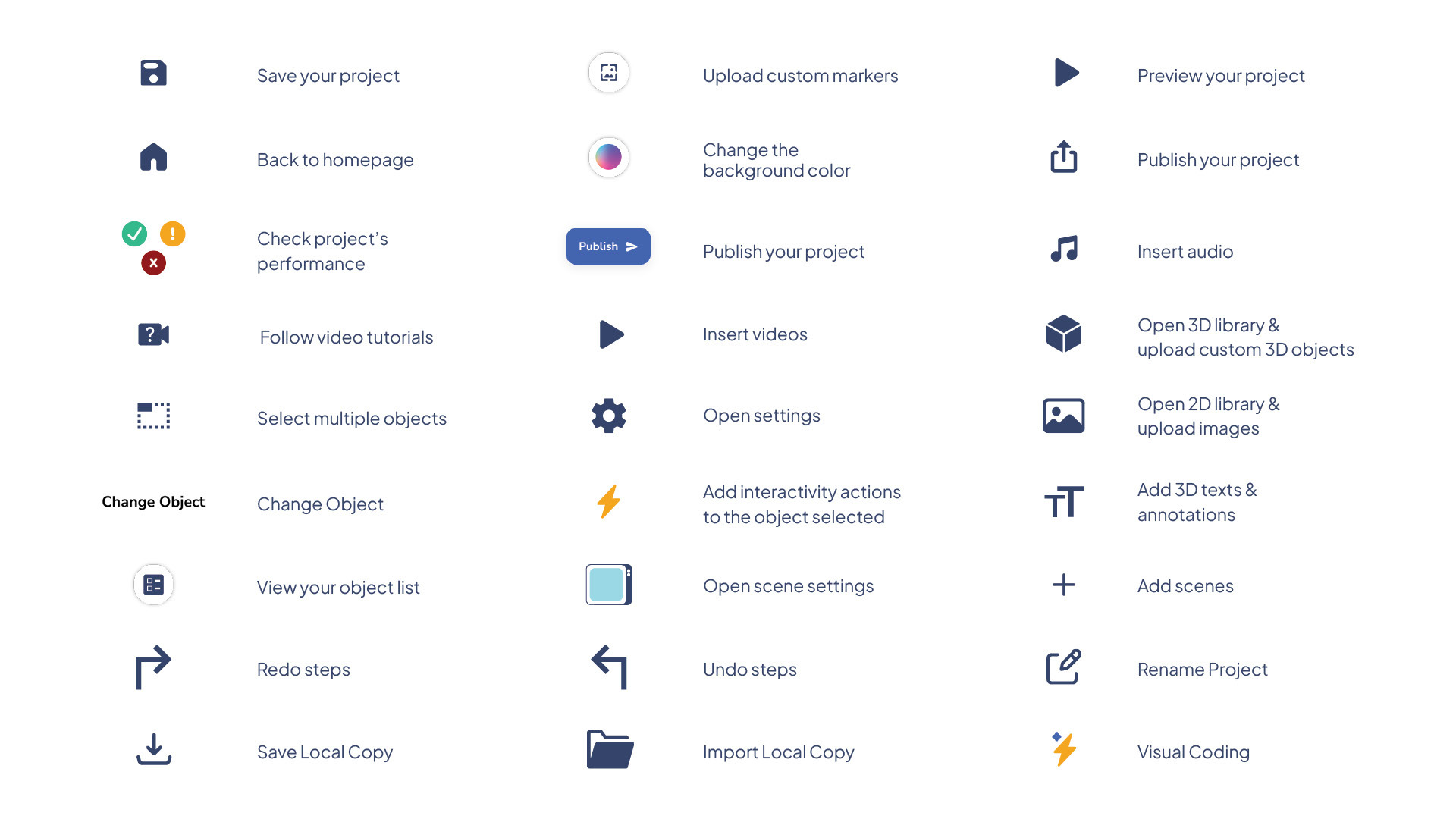
Untuk memulai, kamu bisa mencoba untuk memahami beragam **Control Guide** yang bisa kamu pakai terlebih dahulu.
## Control Guide
## Object List
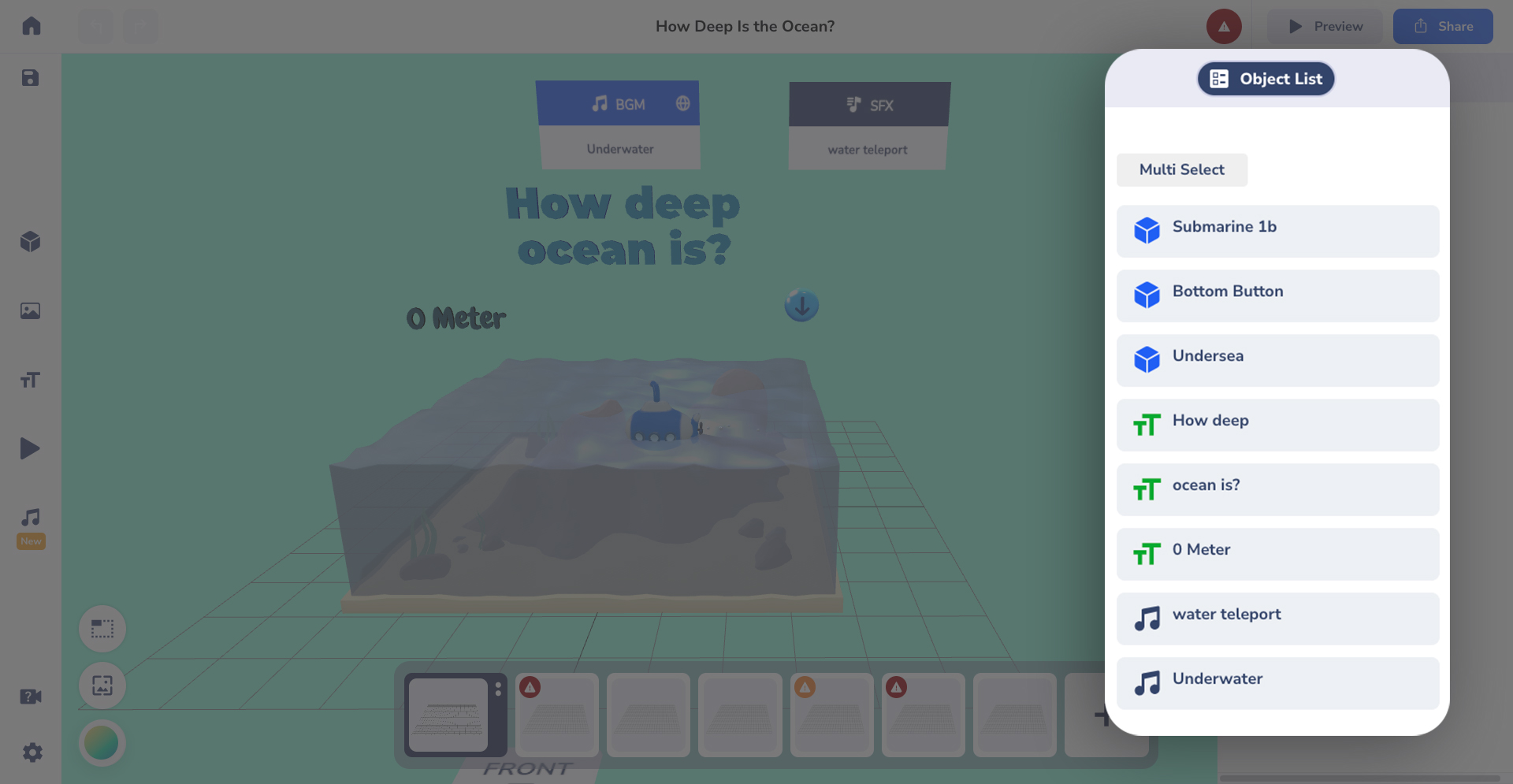
Ketika ada terlalu banyak objek dalam satu proyek, bisa jadi kamu akan kebingungan saat harus mencarinya.
Dengan Object List, kamu bisa **melihat dan menyortir daftar objek** yang ada di kreasimu dengan **lebih mudah**!
{% embed url="" %}
Selain itu, kamu juga bisa mengubah atau menyembunyikan dan menampilkan objek di Editor, cukup dengan klik setiap daftar objeknya.
**Tips Cepat!**
Kamu bisa **tekan 'O'** pada keyboard-mu untuk memunculkan daftar objek dengan lebih cepat!